If you’ve ever wanted a ChatGPT-style chatbot on your website — one that actually understands your business, your products, or your documentation — this is much easier in 2026 than most people expect.
I recently set this up for a small content site using Chatbase (and tested a few similar tools). The entire process took less than ten minutes, and I didn’t write a single line of backend code. Below is the exact workflow I used, along with a few small mistakes I ran into so you don’t have to repeat them.
What you need before starting
You don’t need much to get this working:
- A PDF file, Notion page, or website URL that contains your business content
(FAQs, product docs, pricing pages, blog posts, etc.) - A free account on an AI chatbot builder
(I’ll use Chatbase here, but the steps are very similar on other tools.)
That’s it.
Step 1: Upload and train your data
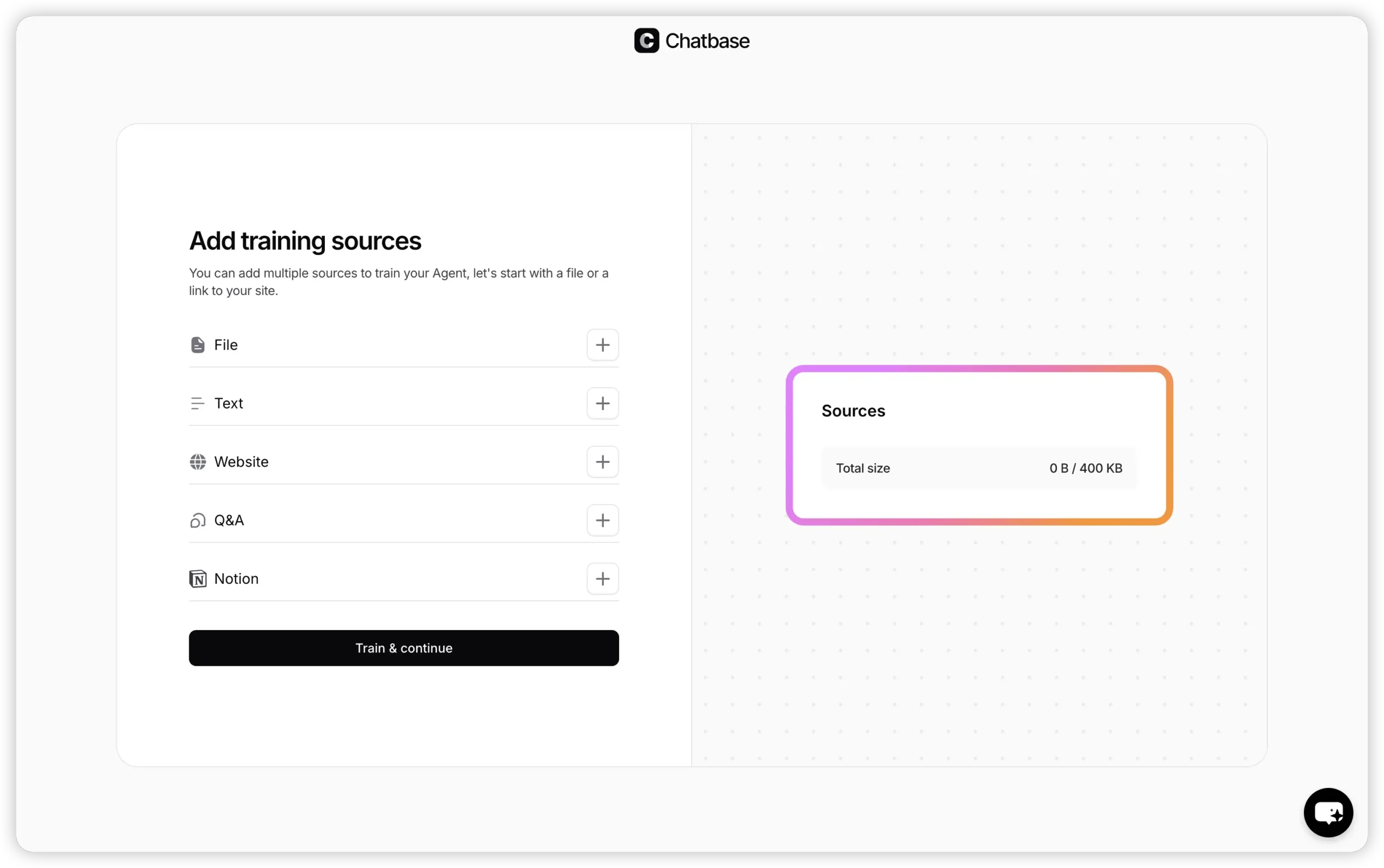
After signing up, click “New Chatbot”. You’ll be asked how you want to provide training data.
You can:
- Upload a PDF
- Paste a website URL for crawling
- Or combine multiple sources
For my test, I uploaded a short PDF with FAQs and linked a few blog URLs. Once everything was selected, I clicked “Train”.
Training usually takes anywhere from a few seconds to a couple of minutes, depending on how much content you upload.
Small tip from experience: start with less data. You can always add more later, but it’s easier to spot issues when the knowledge base is focused.
Step 2: Adjust the chatbot’s tone and behavior
This step is optional, but skipping it often leads to very generic, robotic answers.
Go to the Settings tab and look for the System Prompt or Behavior section. This prompt controls how the chatbot speaks and how it frames answers.
Here’s the system prompt I used as a starting point:
“You are a helpful customer support assistant for Zero Code Club.
Answer questions clearly and briefly.
Use simple language and occasional emojis where appropriate.”
After saving this, the difference in responses was immediately noticeable. The bot sounded more natural and less like raw ChatGPT output.
If your site is more formal (for example, legal or finance), you can tone this down by removing emojis and asking for more structured answers.
Step 3: Embed the chatbot on your website
Once training is complete, open the Connect or Embed tab. You’ll see a JavaScript snippet generated for your chatbot.
If you’re using WordPress, the easiest approach is:
- Install a “Header & Footer Scripts” plugin
- Paste the embed code into the Footer section
- Save changes and refresh your site
Within a few seconds, the chat bubble should appear in the corner of your site.
![[Insert Screenshot: Chat bubble visible on a live website]]
I tested this on both desktop and mobile — the widget adjusted well on smaller screens without extra configuration.
Common mistakes (learned the hard way)
1. Uploading too much content at once
It’s tempting to dump a massive 300–500 page manual into the bot. In practice, this often makes answers worse, not better. The chatbot may respond with vague or overly broad replies.
Start with:
- FAQs
- Key documentation
- A few high-traffic pages
Then expand gradually.
2. Ignoring temperature settings
Most tools allow you to adjust temperature, which controls how creative the bot is.
- 0.0 – 0.2 → very factual, predictable answers
- 0.5 – 0.7 → more conversational and flexible
- 0.8+ → creative, but sometimes inaccurate
For customer support or documentation bots, I usually keep it between 0.2 and 0.4.
3. Expecting it to replace humans
These chatbots are great for:
- Answering repetitive questions
- Helping users find relevant pages
- Reducing basic support load
They are not a full replacement for human support — at least not yet.
Final thoughts
Building a custom AI chatbot no longer requires engineering skills or complex infrastructure. With tools like Chatbase, you can turn your existing content into an interactive assistant in minutes.
The real value isn’t the chatbot itself — it’s how well you prepare the data and guide its behavior. Start small, test responses, and improve over time.
For no-code builders and content-driven sites, this is one of the fastest ways to add real, practical AI to your website in 2026.