Seedance 2.0 Complete Guide (2026): Create Stunning AI Videos Like a Pro
30-Second Version
Seedance 2.0 is ByteDance’s latest AI video generation model. It accepts up to 12 mixed inputs (images, videos, audio clips) and generates up to 15 seconds of high-quality, cinematic video — complete with built-in sound effects and background music. Think of it as an AI director that actually understands what you’re asking for.
You can try it for free through Jimeng AI (China) or Dreamina (international version, Seedance 2.0 coming soon).
Wait, What Exactly Is Seedance 2.0?
Alright, let me cut through the noise.
You’ve probably seen those AI-generated videos all over TikTok and YouTube — the ones that look almost real but give you that weird “something’s off” feeling. Seedance 2.0 is ByteDance’s (yes, the same company behind TikTok/Douyin) answer to that problem, and honestly? It’s pretty impressive.
Here’s the deal: Seedance 2.0 is a multimodal AI video generator. That means you don’t just type text and hope for the best. You can feed it images, video clips, audio tracks, and text prompts — all at once — and it stitches them together into a coherent video. It even generates matching sound effects and background music automatically.
Seedance 2.0 is currently live on Jimeng AI (jimeng.jianying.com), which is ByteDance’s Chinese platform. You’ll need a Chinese phone number or Douyin (Chinese TikTok) account to sign up. But don’t worry — the international version, Dreamina (dreamina.capcut.com), is expected to get Seedance 2.0 very soon.
Quick Specs: What Can It Handle?
| Parameter | Details |
|---|---|
| Images | Up to 9 (JPEG, PNG, WebP, BMP, TIFF, GIF — each ≤30MB) |
| Video clips | Up to 3 (MP4, MOV — total 2–15 seconds, each ≤50MB) |
| Audio | Up to 3 clips (MP3, WAV — total ≤15 seconds, each ≤15MB) |
| Total inputs | Maximum 12 files |
| Output length | 4 to 15 seconds |
| Audio output | Built-in sound effects + background music |
💡 Pro tip: You’ve got limited slots — 12 files max. So choose your materials wisely. Upload the files that actually matter for your vision, not every random image you find.
Two Ways to Use Seedance 2.0
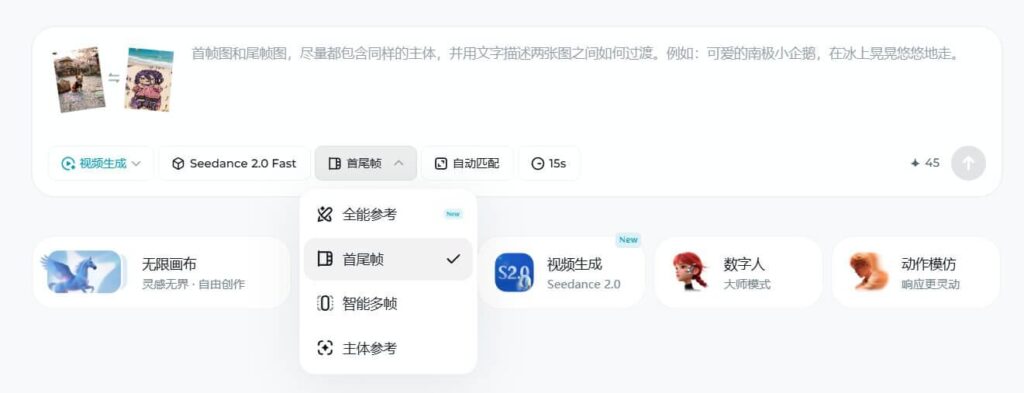
Mode 1: First & Last Frame (Quick & Simple)
This is the easy mode. Upload a starting image, maybe an ending image, type a quick description of what should happen between them, and hit generate.
Great for: quick experiments, simple transitions, testing the waters.
Mode 2: Omni-Reference Mode (The Real Deal) ⭐
This is where the magic happens.
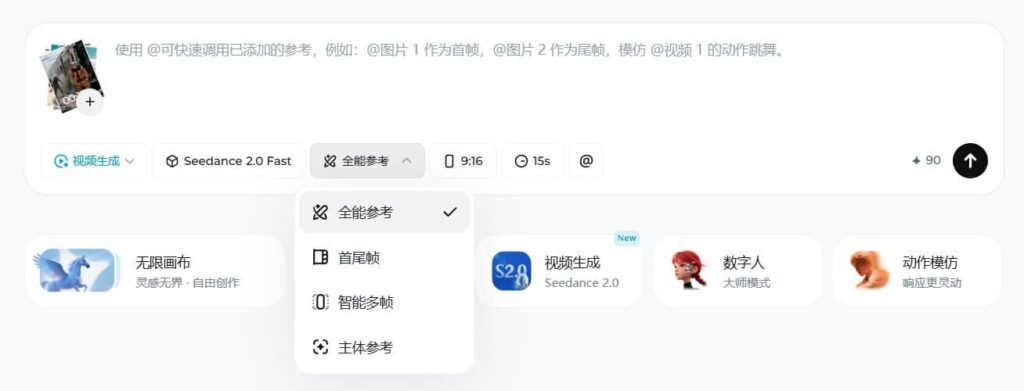
In Omni-Reference mode, you mix and match all four types of inputs — images, videos, audio, and text — and use the @ syntax to tell the AI exactly what each file is for.
Example prompt:
@Image1shows the main character. I want them to move with the camera motion from@Video1— that smooth push-in. Their dance move should match what’s happening in@Video1. Keep the energy high, stage lighting.
Common @ patterns you’ll use all the time:
- Set the starting frame: “Use
@Image1as the opening shot” - Extend a video: “Extend
@Video1by 5 seconds” (make sure you select the additional duration when generating) - Copy camera movement: “Mirror the camera work from
@Video1“ - Match the music: “Background score should match
@Audio1“ - Bridge two scenes: “Create a transition between
@Video1and@Video2where [describe what happens]”
⚠️ Important limitations to know:
- The “Smart Multi-Frame” and “Subject Reference” modes are not supported with Seedance 2.0 yet — stick to First & Last Frame or Omni-Reference.
- The platform will block uploads containing real human faces — the system auto-detects and rejects them. This is a current limitation you’ll run into.
10 Things Seedance 2.0 Does Really Well
1. Way Better Visual Quality
The physical realism, motion smoothness, and stylistic consistency have all taken a serious step up. Objects move more naturally, lighting behaves more like it should in the real world. It’s not perfect, but it’s genuinely close.
2. Rock-Solid Consistency
One of the biggest complaints about AI video? Faces morphing, products distorting, text scrambling between frames. Seedance 2.0 addresses this head-on. Faces stay consistent. Product details don’t mysteriously change. On-screen text actually stays readable.
3. Copy Any Camera Move — Just Upload the Reference
Upload a reference video and the model mimics the cinematic camera work. Dolly shots, pans, zooms — it picks up the language. No need to know film-school jargon.
4. Recreate Creative Transitions and Effects
Want that slick ad-style transition? Or a creative cut that matches a specific film technique? Upload reference material and the model picks up on the pacing, rhythm, and visual language.
5. Fill in the Story Gaps
Give it a few scene setups and a rough description of where the story’s going, and Seedance 2.0 auto-fills in the plot progression. It’s basically a co-screenwriter that works in video.
6. Smooth Video Extension
No more jarring cuts when you extend a clip. The transition between the original and the AI-generated extension is surprisingly seamless.
7. Better, More Natural Sound Design
The audio generation quality has jumped significantly. The sound effects and background music it creates actually feel connected to what’s happening on screen — not just pasted on top.
8. Long Takes That Actually Work
Continuous single-shot sequences with proper shot continuity. Great for that cinematic “one-take” look that filmmakers love.
9. Edit Existing Videos
Already have a video but want to swap out a character, add/remove a clip, or adjust the pacing? Seedance 2.0 lets you modify existing footage instead of starting from scratch every time.
10. Beat Sync — Automatic Music-to-Video Matching
Upload an audio track and the AI syncs the visual action to the beat. If you make rhythm-based short-form content (Reels, TikTok), this is basically your new best friend.
How to Write Prompts That Actually Work
Here’s the universal formula I recommend:
Subject + Action + Setting + Lighting + Camera + Style + Quality + Constraints
Concrete Example
A young woman walking slowly along the beach at golden hour, wind gently blowing through her hair, she looks toward the camera with a soft smile. Warm sunset lighting, slow steady tracking shot, 4K resolution, cinematic feel, smooth stable camera, crisp details.
5 Rules I’ve Learned the Hard Way
1. Write slow, continuous movements — not vague ones.
❌ Bad: “dancing,” “walking”
✅ Good: “slowly turns to face the camera,” “gently raises one hand”
2. Keep camera directions simple and stable.
Use terms like “slow push-in,” “steady tracking shot,” “gentle orbit around the subject.” Don’t try to choreograph a Michael Bay movie in one prompt.
3. Always add stability keywords.
Include phrases like “face stays consistent throughout,” “natural body proportions,” “smooth continuous motion.” These aren’t filler — they actually help the model avoid common AI glitches.
4. Quality descriptors go at the end.
“4K, ultra-high definition, cinematic quality, no motion blur, no flickering, stable image”
5. Double-check your @ references before hitting generate.
When you’re juggling multiple files in Omni-Reference mode, it’s easy to accidentally point @Image3 at the wrong thing. Takes 5 seconds to check. Saves you from a wasted generation.
Popular Style Keywords
Boho warm, cinematic noir, cyberpunk, dreamy soft focus, vintage film, moody desaturated, K-pop aesthetic (soft pastel, clean), Japanese minimalist — pick your vibe and the model will match it.
What to Avoid 🚫
- Vague adjectives — “beautiful,” “cool,” “epic” tell the AI nothing
- Contradictory requests — “super fast movement” + “extremely stable” = confused model
- Copyrighted characters — just don’t
- Violence or dangerous action descriptions — the system flags these
Quick Start: Your First 5 Minutes
- Try First & Last Frame first. Upload a single image, write one sentence describing what should happen, and generate. Get a feel for how the model interprets your words.
- Move to Omni-Reference. Upload a reference video and use the
@syntax to tell it: “copy the movement from this video.” See how closely it matches. Then try combining image + video + audio for a real multi-input test. - Iterate. Your first result probably won’t be perfect. Tweak the prompt. Swap a reference file. Change one variable at a time and see what happens.
Frequently Asked Questions
Is Seedance 2.0 free?
Yes — through Jimeng AI, your account gets free credits to start. After those run out, you can buy a membership, top up credits, or wait for the daily refresh. Expect Dreamina (international) to follow a similar model when it launches there.
How do I access it right now?
Currently, Seedance 2.0 is live on Jimeng AI (jimeng.jianying.com) — ByteDance’s Chinese platform. You’ll need a Chinese phone number or Douyin account to access it. Dreamina (dreamina.capcut.com), the international version, is expected to add Seedance 2.0 soon.
How long of a video can I generate?
Maximum 15 seconds. If you need something longer, you’d generate multiple clips and stitch them together in post.
What if generation fails?
Most common reasons:
- Prompt is too long or too convoluted
- You uploaded a file with a real human face (gets auto-blocked)
- You ran out of credits
- Servers are overloaded (try again later)
Can I use it for commercial projects?
This is where things get tricky. The legal landscape around AI-generated content is still evolving. I’d strongly recommend reading Jimeng AI’s current terms of service before using anything commercially. When in doubt, consult a lawyer.
Final Thoughts
Look — AI video generation has been making leaps and bounds lately. Seedance 2.0 isn’t just “another upgrade.” The ability to combine images, video, audio, and text in a single generation, with automatic sound design? That’s genuinely useful for creators, not just a novelty.
Is it perfect? No. The face-block limitation is frustrating for anyone wanting to create character content, and the Chinese-only access is a real hassle for Western users right now. But with Dreamina getting Seedance 2.0 on the horizon, that’s going to change.
My advice: play with it now if you can, learn the @ syntax, get comfortable with how it interprets prompts. When it hits Dreamina internationally, you’ll already be ahead of the curve.