Have you ever run into this frustrating issue? You’re using the Nano Banana model on LMArena AI, Google AI Studio, or Gemini. You upload an image, explicitly ask for a specific aspect ratio in your prompt, and… nothing. It still spits out the wrong size!
Whether you’re trying to generate a 9:16 vertical cover for an Instagram Reel, or a classic 16:9 thumbnail for a YouTube video, Nano Banana often seems to ignore your text prompts and stubbornly sticks to its default dimensions.
Well, you’re in the right place. This guide will show you exactly how to force the AI to generate the exact image dimensions you need. With just one simple step, you’ll have complete control over your AI image outputs!
Step-by-Step Guide: Controlling AI Image Sizes with a “Canvas”
The core concept here is brilliantly simple: instead of trying to command the AI with text prompts, we feed it a “blank canvas” that already has the exact dimensions we want.
We’ll use LMArena AI for this demonstration, but this exact same method works flawlessly on Google AI Studio and the official Gemini app.
🔥 Step 1: Prep Your “Custom Canvas”
First things first, we need a tool to create our foundation. The free online design tool Canva is perfect for this.
- Head over to Canva, click “Create a design” in the top right corner, and select “Custom size”.
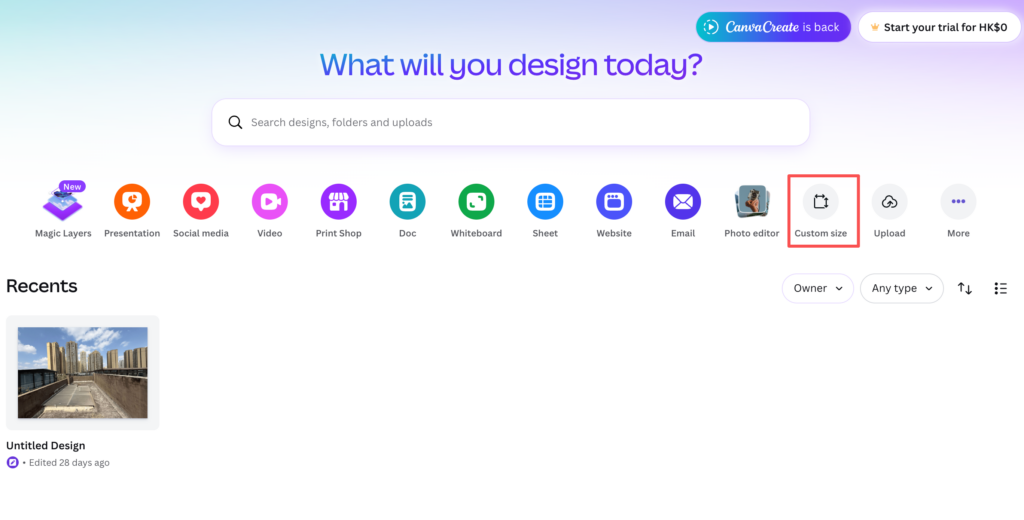
Enter your desired dimensions. Here are a few standard sizes for quick reference:
- 16:9 (YouTube thumbnails, horizontal videos): 1920 x 1080 pixels
- 9:16 (IG Reels, TikToks, mobile wallpapers): 1080 x 1920 pixels
- 4:3 (Standard photography, presentations): 1280 x 960 pixels
- 1:1 (Instagram & Facebook posts): 1080 x 1080 pixels
Upload your original reference picture to Canva, drag it onto your newly sized canvas, and adjust the placement to your liking.
Click “Share” in the top right, then “Download”, and save this new canvas layout as a JPG file.
🔥 Step 2: Upload Your Canvas (Using LMArena AI as an example)
Now, let’s put that canvas to work.
- Go to the LMArena AI website. You’ll be greeted by a clean chat interface.
- At the top of the screen, click on “Battle” and select “Side by Side”.
- Choose the “Gemini-2.5-flash” model from the dropdown list.
- Near the chat box at the bottom, click to open the “Image” tab. The top of the screen should automatically switch to indicate
Gemini-2.5-flash-image-preview (nano-banana). - Click the “+” icon to upload the JPG canvas you just created in Canva.
- Type your prompt into the text box (for example: “Transform this photo into an anime-style action figure”). Hit send!
The Result: The AI will now generate a brand-new image that perfectly matches the aspect ratio of the canvas you provided!
You can repeat this exact process by uploading different blank canvas ratios (like 9:16 or 4:3), and the AI will obediently generate your image in that precise size every single time.